 RightFont
Help center
See every font with your own words.
Preview fonts with your own text and size, switch between Grid and List, step through a family’s styles, see a font up close and read every detail in Info.
Your own words
Click the preview field and type a headline, a brand name or a paragraph — every card shows it. Copied text from another app works too: press ⌘V anywhere outside a text field.
| Paste copied text as the preview textOutside a text field | ⌘V |
|---|---|
| Bigger, smaller or actual size | ⌘+or⌘-or⌘0 |
| Show or hide preview options | ⇧⌘P |
Grid and List
Switch between Grid and List with ⌘1 and ⌘2.
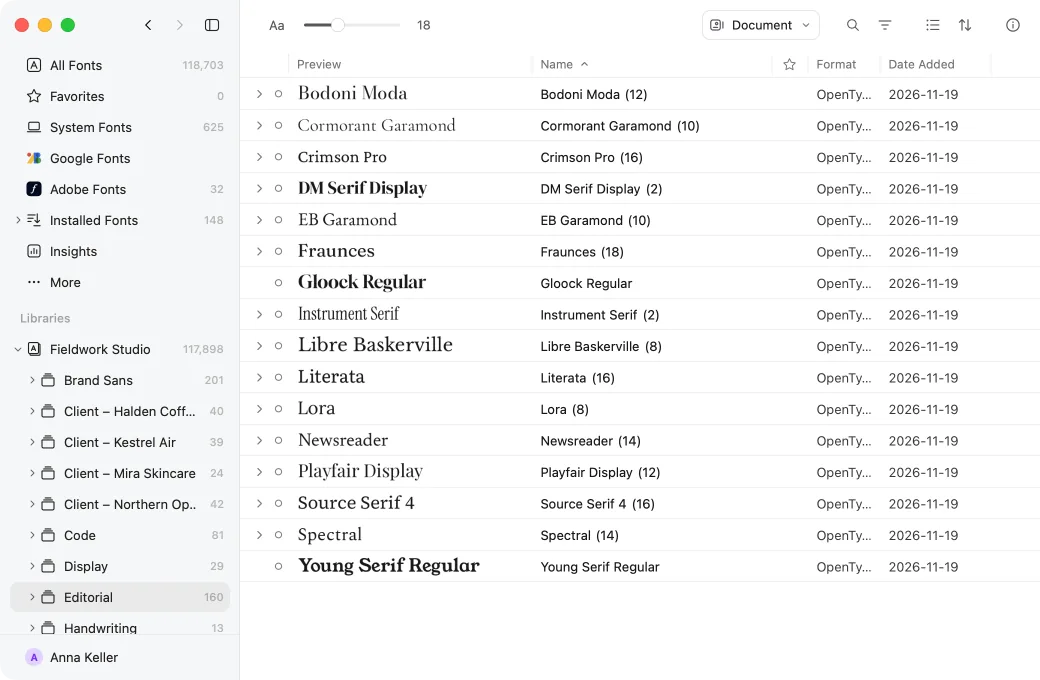
Family cards
A family card shows a whole family. Skim across it with the pointer, or press ⌥← and ⌥→, to step through its styles. Variable fonts step through their named instances the same way.
A font up close
Select a font and press Space to see it up close. Show the glyph outlines, and move from glyph to glyph with the arrow keys.
| Preview the selection up close | Spaceor⌥⌘B |
|---|---|
| Show glyph outlines | ⌘Y |
| Previous or next glyphGlyph view | ←or→ |
Every detail in Info
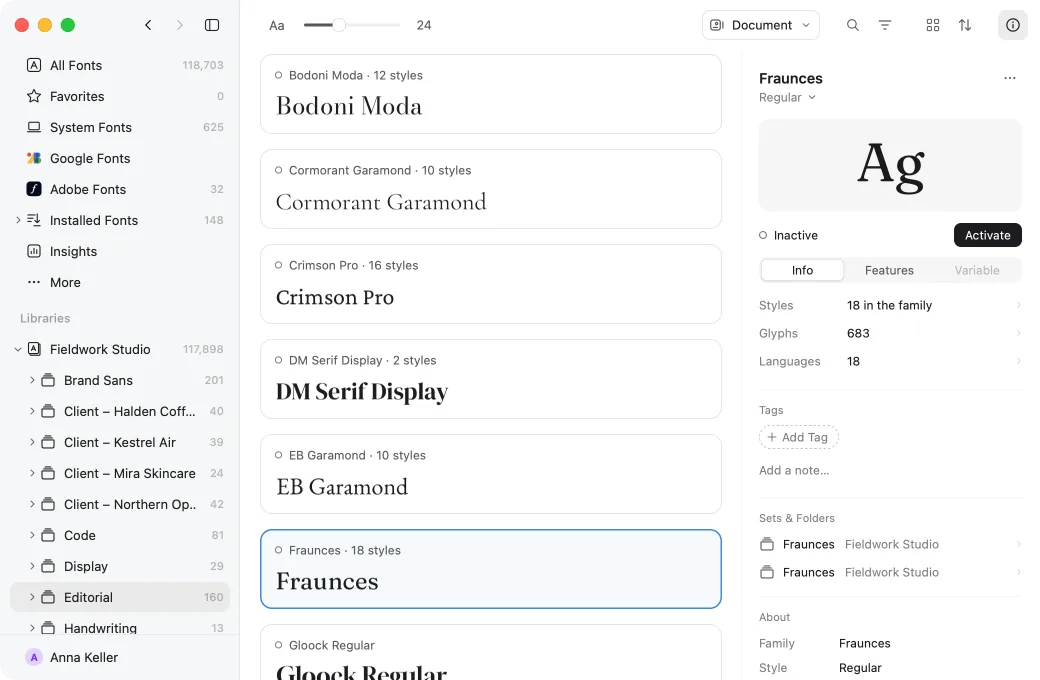
Press ⌘I for the Info panel: details, glyphs, OpenType features, variable axes and named instances, metrics and the technical tables — for one font, several, or a whole family.
Info also notes what to watch for in Adobe apps, in PDF export and in the font file itself.
In your own design
Select text in Photoshop, Illustrator, InDesign, Sketch or Figma and choose Preview in Your Design: every font is set in your actual layout, next to the original.
Preview in Your DesignWrite to support@rightfontapp.com. Someone on the RightFont team reads every message.