Create Smart Filters in RightFont
Smart Filters help you automatically organize fonts that match specific criteria, such as font style, activation status, language support, and more.
Once created, a Smart Filter updates automatically whenever matching fonts are added, modified, or removed from your library.
Create a Smart Filter
- Open RightFont on your Mac.
- In the sidebar, click the + button in the toolbar, and then choose New Smart Filter from the menu.
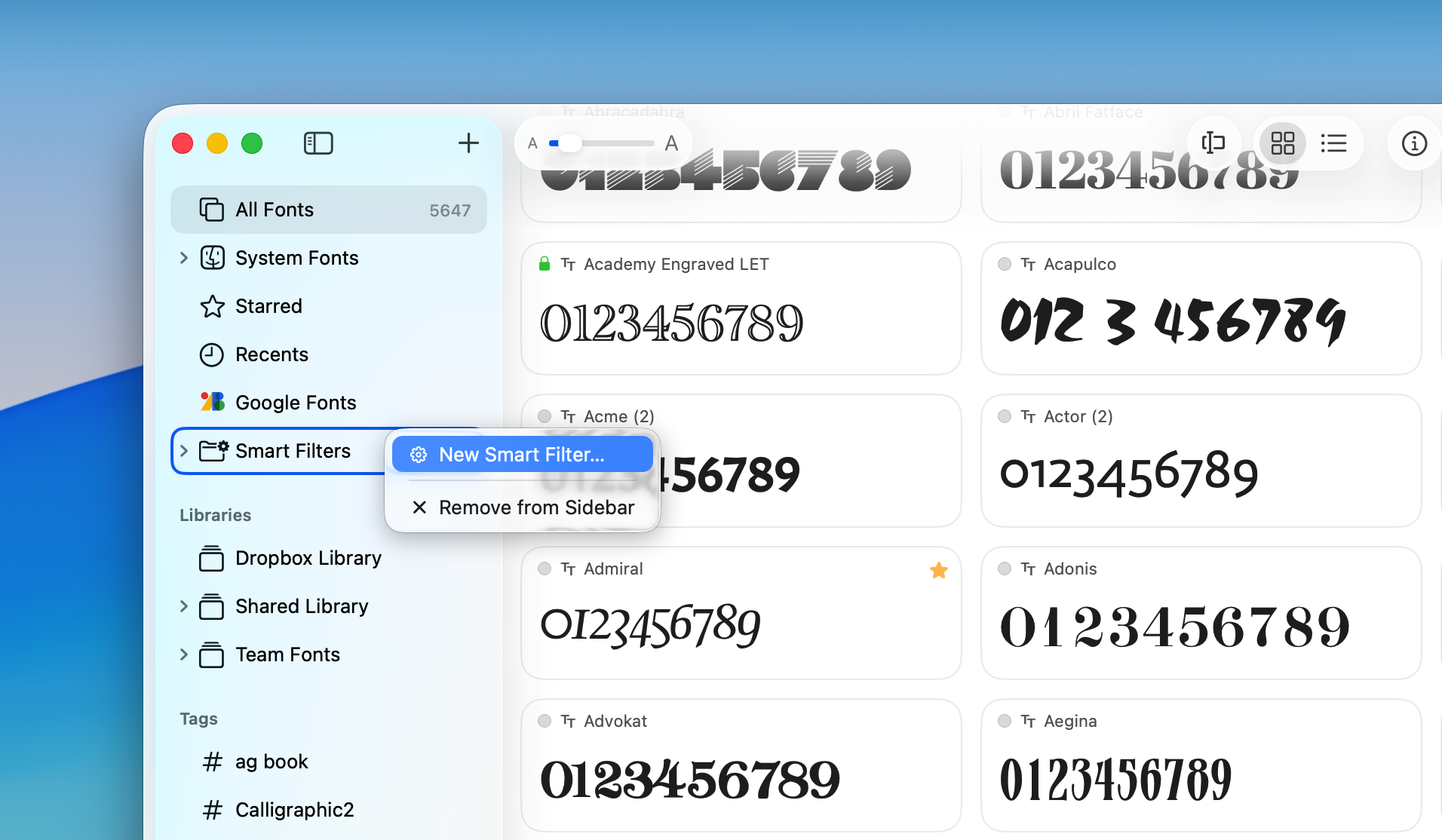
- Enter a name for the Smart Filter that describes the fonts it will contain.
- Set the filtering criteria based on the font attributes you want to match, such as:
- Font style
- Activation status
- Supported languages
- Other font properties
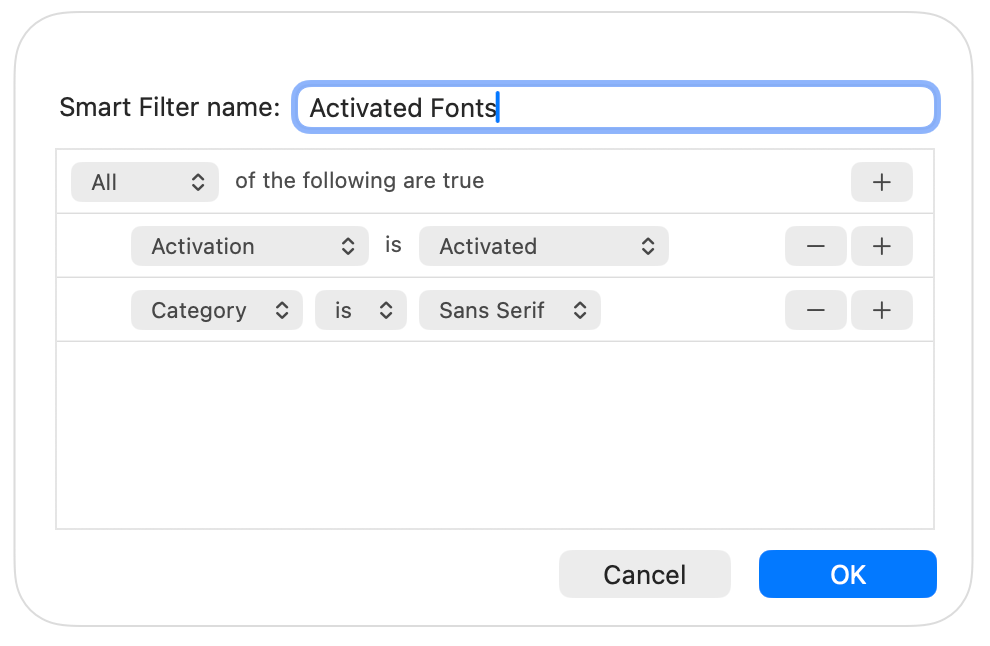
- Click OK to save the Smart Filter.
Manage Smart Filter Criteria
You can edit a Smart Filter at any time to refine or expand its criteria. RightFont will instantly update the results based on your changes.
Smart Filters make it easy to maintain dynamic font collections without manually organizing fonts yourself.