Create App Sets to activate fonts on demand
In RightFont, you can create App Sets to automatically activate fonts when a specific app launches and deactivate them when the app quits. This helps you keep only the fonts you need active for each workflow.
For example, you can create one App Set for Adobe Photoshop and another for Sketch, each with its own collection of fonts.
Create an App Set
- Open RightFont on your Mac.
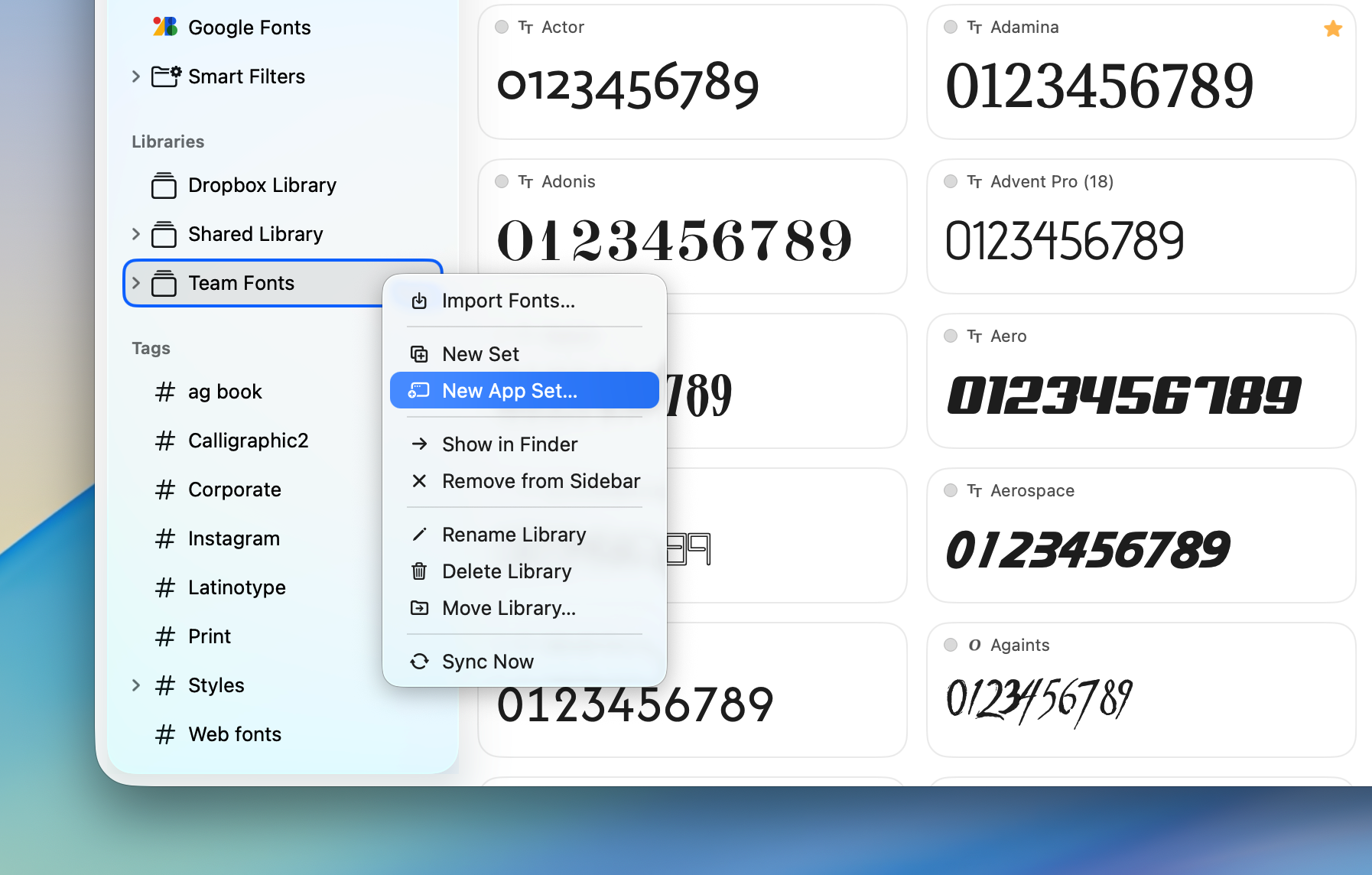
- In the sidebar, select a font library or font list.
- Right-click and choose New App Set….
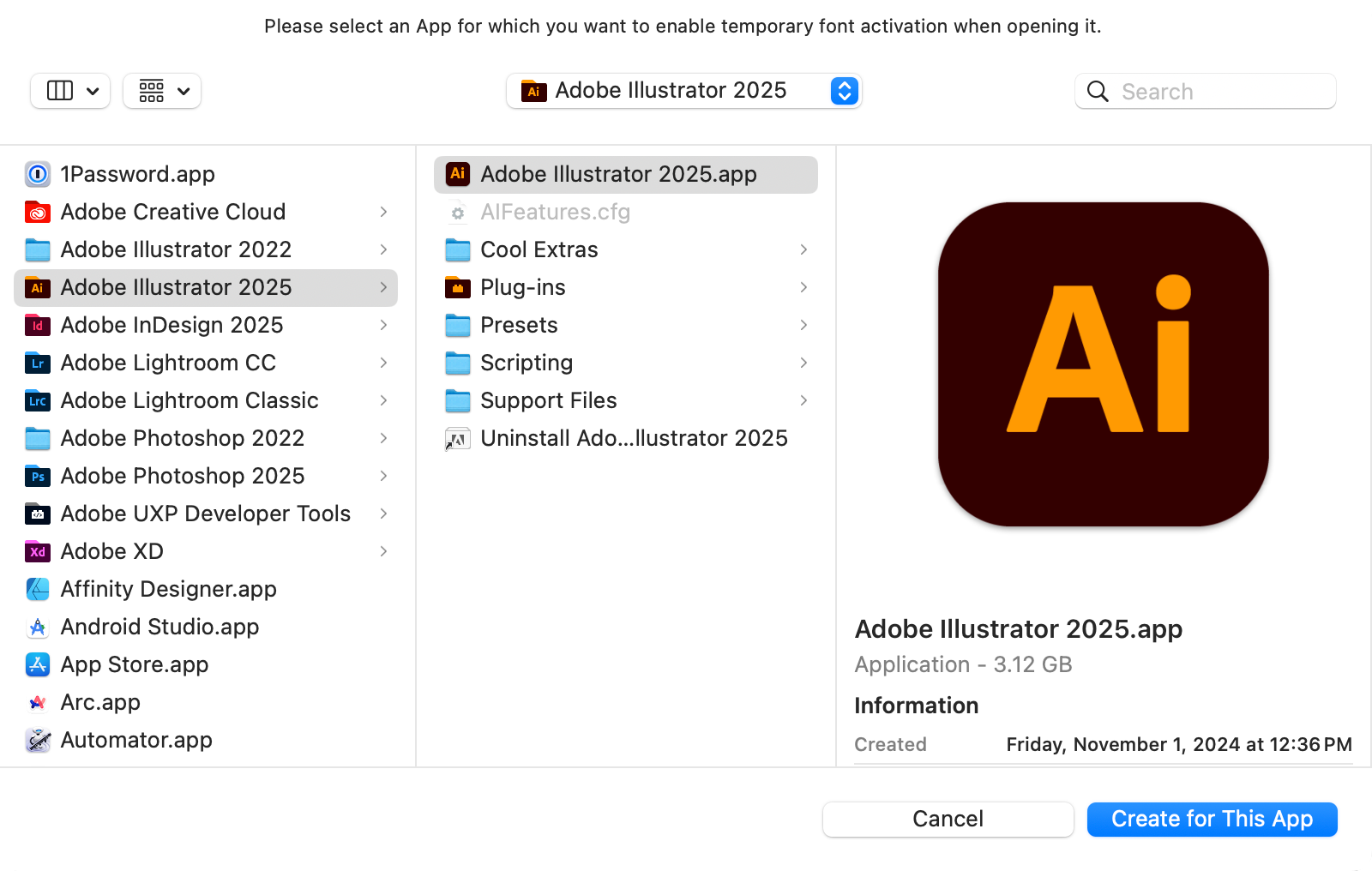
- In the dialog that appears, select the application you want to associate with the App Set, then click Create for This App button.
Add Fonts to the App Set
After creating the App Set, add the fonts you want to activate with the app:
- Drag fonts from your library into the App Set, or
- Right-click the App Set and choose Import Fonts…
How App Sets Work
- When you launch the associated application, RightFont automatically activates the fonts in the App Set.
- When you quit the application, RightFont automatically deactivates those fonts.
This allows you to manage fonts efficiently and keep your system organized while ensuring the right fonts are always available for your projects.